Help & support
Support for Block Guard
Find answers to common setup questions, recovery issues, default-phone behavior, and text-filtering workflows. If you still need help, contact support directly with a proper mailto link.
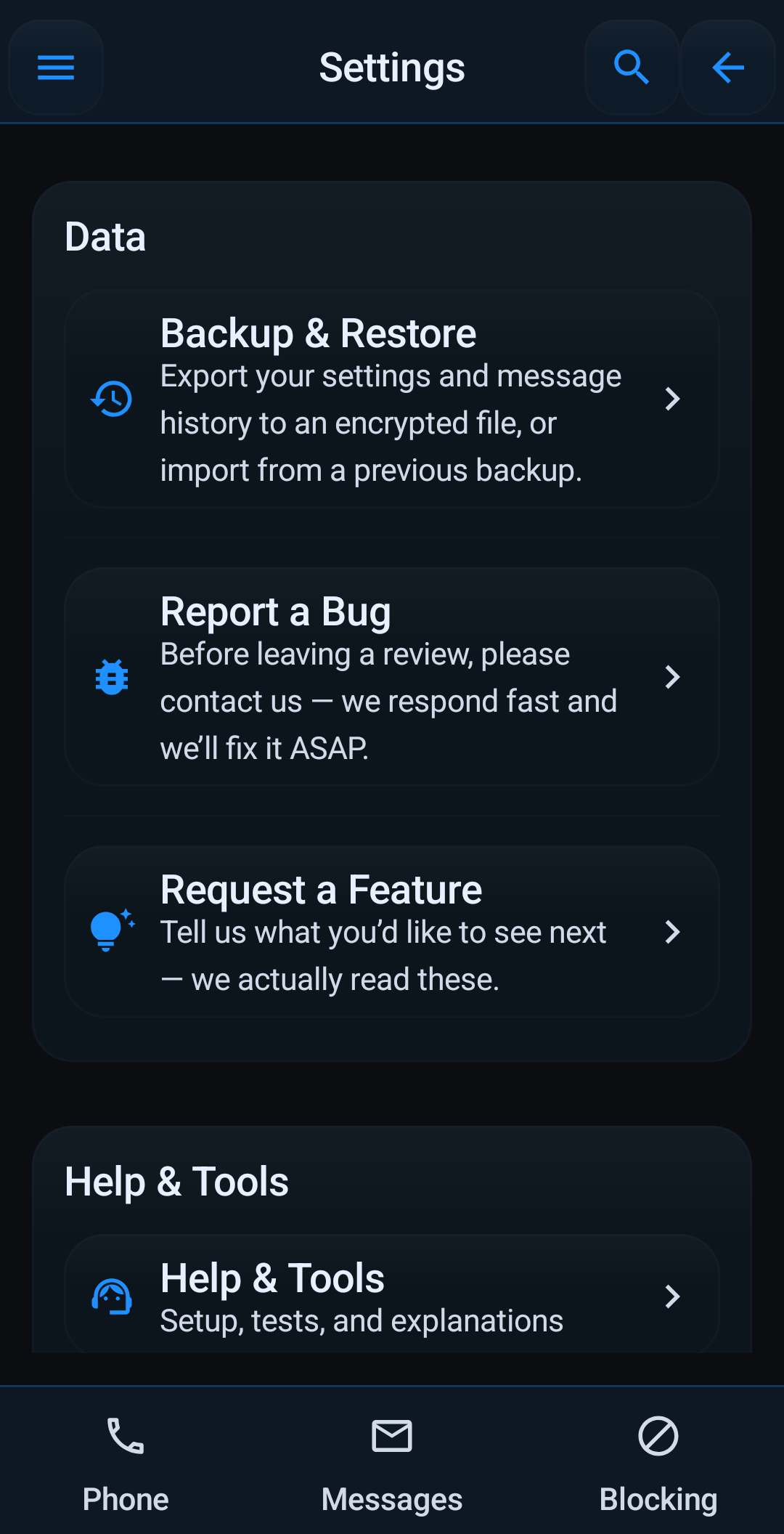
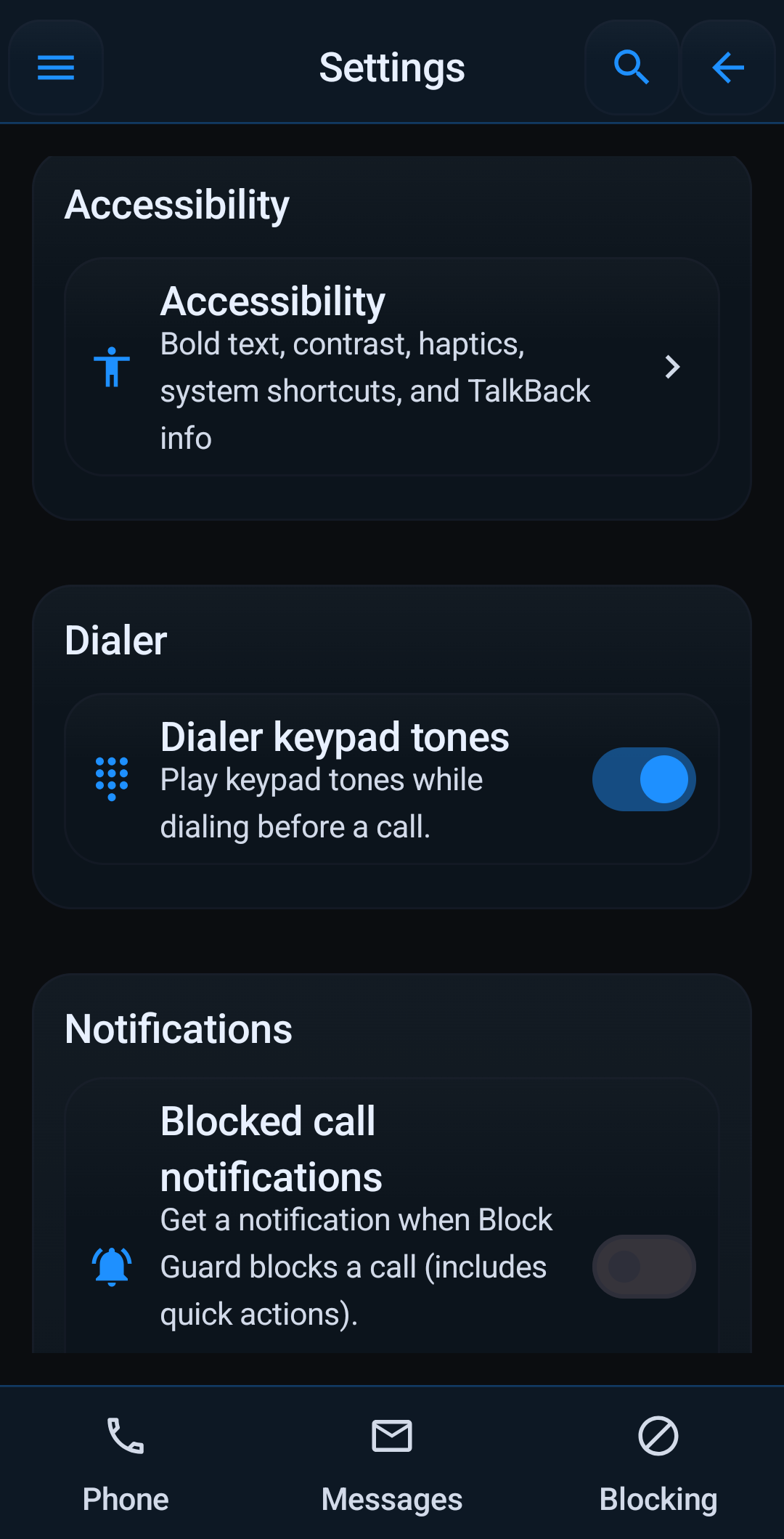
Settings access
Useful support paths na already exposed in di product
Support na stronger when users fit recover on their own first. Appearance, accessibility, notifications, backup, and help tools na discoverable from inside di app, wey reduces dead ends.
How do I add a number to di blocklist?
Navigate to di 'Blocked Numbers' section from di main menu or homepage quick actions. Enter di number you wish to block and tap 'Add Number'. You fit also select from your contacts.
How does whitelisting work?
Whitelisted numbers will always bypass any blocking rules, including Do Not Disturb mode (if overrides na enabled). Add important contacts to your whitelist from di 'Whitelist' section to ensure you never miss their calls.
What permissions does Block Guard need and why?
Block Guard requires permissions like READ_PHONE_STATE (to detect incoming calls), CALL_PHONE (to manage calls), READ_CONTACTS (for whitelisting and caller ID), READ_CALL_LOG (to display call history), and SMS permissions (for text blocking). Each permission na crucial for di app's core functionality. You fit find a detailed list in our Privacy Policy.
How does Do Not Disturb mode function?
DND mode dey block all incoming calls unless they na from whitelisted numbers or contacts (if configured in DND settings). You fit schedule DND for specific times or toggle it manually.
Is my data secure?
Yes, your data na secure. Block Guard uses Android's EncryptedSharedPreferences (via androidx.security:security-crypto) to store your settings locally on your device. We do not upload your blocklists, whitelists, or call logs to any server.
How do I backup and restore my settings?
Block Guard include a Backup & Restore feature. You fit find dis in di main menu. Export your settings (including blocklists, whitelists, and app preferences) to an encrypted file. You fit restore from dis file if you reinstall di app or move to a new device. Remember to keep your backup password safe!
What if I see a 'Preference Error Dialog'?
This dialog fit appear if there's an issue accessing your encrypted settings, often after reinstalling di app due to an encryption key mismatch. Di dialog provides options: 1. Try 'Import Backup' if you have one. 2. If wey fails or you reinstalled, tap 'Go to Settings', navigate to Block Guard's app info, select 'Storage & cache', then 'Clear storage'. Relaunch di app (it will start fresh), then use di 'Backup & Restore' menu to import your backup file.
Text message blocking isn't working perfectly.
For di most effective text message blocking, Block Guard may need to be set as your default SMS application.Dis allows it to intercept and filter all incoming SMS messages directly. If it's not di default, it relies on notification access, wey might not catch all messages or provide di same level of control.
Local support guidance
- Start with Help Tools and Help Center if setup never clear. Guided Setup and permission checks go solve many first-time problems before you even send email.
- If call blocking no dey work as you expect, check default phone / Call Screening setup and the Android permissions first.
- If SMS filtering still weak, remember say the strongest protection usually need Block Guard to become your default SMS app.
- When you message support, include device model, Android version, and the exact screen or step wey show the problem.
Common questions
I suppose use in-app help first or email support straight?
Use the in-app help tools first to check setup, permissions, and real behavior. Email support when the problem still clear and easy to explain.
Why blocking no dey work well immediately after install?
Common reasons na missing permissions, unfinished default phone / Call Screening setup, or SMS filtering without default SMS app.
Which details go help support answer faster?
Send device model, Android version, wetin you expect, wetin really happen, and whether the issue na calls, texts, or permissions matter.
Need more help?
Contact support directly
If di FAQ and guides do not cover your issue, email di support team and include di device, Android version, and a short description of what Block Guard na doing.